Email Sending Failed: Troubleshooting Tips
This article tells about G-Lock EasyMail v6.xx and explains the most common reasons why the email sending in G-Lock EasyMail v6.xx may fail and gives possible solutions to them.
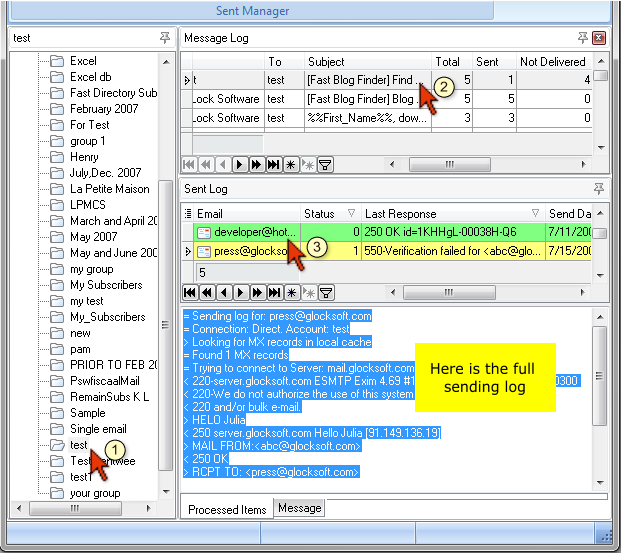
G-Lock EasyMail v6 records the log for each processed message. In case of sending failure, you can always find the reason of failure in the log. To view the message log, click on the Sent Manager button on the toolbar and do this:
- Select the group on the left pane, to which you sent the emails
- Select the message in the Message Log pane
- Click on the email address in the Sent Log pane and you'll see the full message log for this recipient.
You can re-send unsent messages from the Sent Manager. Just click on "Resume Sending" button.
Here are the most common errors you can see in the log when email sending fails:
Failed to connect: [10051] Network is unreachable
 Failed to connect: [10060] Connection timed out
 Failed to connect: [10065] No route to host
If nothing was sent and you see the above errors for all the messages, this means that either your ISP closed direct connections to the port 25 for all ISP except of itself, or your local firewall blocks access to the port 25.
First of all make sure that your firewall does not block G-Lock EasyMail. Add the EasyMail.exe and the DeliveryMonitor.exe files to the list of programs allows to access Internet in your firewall settings.
If the problem is not in firewall, check if your ISP blocks the port 25 or not. To do this:
- Open the account settings in G-Lock EasyMail.
- Click on the Delivery Options tab.
- Make sure the "Direct send" is selected.
- Click "Test".
If the test says FAILED, your ISP blocks the port 25 and you cannot send emails using the direct send mode in G-Lock EasyMail.
If your ISP blocks the port 25, there are 2 workarounds:
- Use a SMTP server in G-Lock EasyMail. Go to G-Lock EasyMail Account settings, click on the Delivery Options tab, select the "Send via SMTP server" delivery mode and enter your mail server name, and the port 25. If you don't have your own SMTP server, you can use the SMTP server of your ISP. The server name usually reads like mail.your-isp.com or smtp.your-isp.com. If you are not sure, you can pick up the SMTP server name for the Accounts settings in your regular email client. Look for the record in Outgoing Mail Server (SMTP) field or something similar. Or, you can call your ISP and ask.
- Use the 3rd party email service Amazon SES. G-Lock EasyMail is integrated with Amazon SES. Here you can learn how to use G-Lock EasyMail with Amazon SES to send bulk emails.
Disconnected [10053] software caused connection abort
This error usually occurs if a third party program doesn't allow G-Lock EasyMail access the Internet. This can be either firewall or an antivirus scanner. If you have firewall, make sure that G-Lock EasyMail is added to the list of the applications that are allowed to access the Internet. You need to allow two files – EasyMail.exe and DeliveryMonitor.exe – in the firewall settings. If you decide to remove firewall from your computer, you must completely uninstall it but not only delete from the Startup section becausethe firewall kernel may still load at startup without you knowing it and block some programs.
As to the antivirus scanner, we usually suggest that you disable it for the time you are working with G-Lock EasyMail. The antivirus program can catch outgoing emails before they are sent and scan them. This usually slows down the sending process, or may not allow the messages to go out with the error like "Software Caused Connection Abort" or something similar.
550 You are not allowed to send mail Please refer to www.spamhaus.org, dsbl.org and njabl
 550 Dynamic IPs/open relays blocked. Contact openrelay@abuse.earthlink.net
 553 5.3.0 ylpvm05,DNSBL: To request removal of, xx.xxx.xxx.xxx, send the complete error message...
The errors above mean that the sender's IP address is listed within spam databases. The recipient's SMTP server can be configured so that it checks the sender's IP address against a list of spam databases before letting the message pass through. If it finds that the IP is blacklisted, the message from this IP is not accepted.
Go to G-Lock EasyMail Account settings (Delivery Options tab), enter your SMTP server name and the port 25. Click OK to save the account settings and re-send the messages. If you don't have your own SMTP server, you can use the SMTP server of your ISP, or Amazon SES API or SMTP settings.
550 5.7.1 <(email address)>... Relaying denied
 550 .net 022: Your current IP address is not allowed to relay to xxxxxxx.yyy
 551 Command RCPT User not local and relaying not permitted from you
The SMTP server you use in G-Lock EasyMail Account settings must require a POP3 authentication. Open G-Lock EasyMail Account settings, click on the Delivery Options tab, check the "Use POP3 Authentication" option, enter your POP3 server name, port number (usually 110), your login and password for the POP3 server. Click OK to save the Account settings and re-send the emails from the Sent Manager.
502 Command is locally disabled
 502 Command not implemented
Uncheck the "My server requires authentication" option in G-Lock EasyMail Accounts settings (Delivery Options tab) and re-send the emails from the Sent Manager.
421 ...: Too many concurrent SMTP connections from this IP address; please try again later.
 450 too frequent connects from...
Your SMTP server limits the number of emails you can send at the same time. A workaround is to decrease the Threads (maybe to 1) in the Delivery Montior.
421 Connection not accepted at this time
 450: Too Many Connections
 max connection rate exceeded
Your SMTP server must limit the number of emails you can send within a period of time. To avoid this error, you can:
- Set the time intervals between emails. To do this, check the "Periodically sleep for xx sec after processing xx messages" option in the Send Message screen and enter the number of emails and the time interval the program will wait after processing the specified number of messages.
- Use the Amazon SES API or SMTP settings in G-Lock EasyMail. Amazon SES is a cheap 3rd party email service. Once you signup with Amazon SES, you can use their APi or SMTP settings in G-Lock EasyMail to send bulk emails. Here you can learn how to use Amazon SES SMTP settings in G-Lock EasyMail to send your email newsletters.
354 Enter message, ending with "." on a line by itself ... Process terminated
 354 Start mail input; end with <CRLF>.<CRLF>
 354 go ahead
It looks like the mail server of your recipient doesn't allow your emails to go through because of the message content. The SMTP servers may have filters that analyze all incoming messages and reject the emails with some words in the content they see inappropriate. The emails with a big size and/or big attachment may also be filtered and rejected. It depends on the mail server settings. So, you should revise your email.
For example, if you send pictures of a big size and/or big attachment, consider placing them on a web site and include and URL to them into the message body instead.
If you have an opt-in list of recipients and will be regularly sending the messages to that list, it is reasonable that you ask your recipients to add your email address to their address books, or whitelists. In this case they will receive all the emails from you as good.
Want convenient and easy ways to keep in touch with your subscribers, clients or customers? Try G-Lock EasyMail7
Thousands of large and small businesses in all parts of the world are already using it to increase sales through email marketing