
Top Questions about G-Lock EasyMail7
Installation and Transfer
1. Can I use G-Lock EasyMail7 on Mac?
Though G-Lock EasyMail7 is developed for Windows, you can use G-Lock EasyMail7 on MAC with Parallels Desktop http://www.parallels.com/eu/products/desktop/ and a Windows license (that allows the use of applications developed for Windows on Apple devices).
2. Can I install the product on 2 machines? I’m running a desktop in the office, have a laptop and a home desktop.
If you have one license, you can install and activate the EasyMail7 Server component only on one machine. And you can install the EasyMail7 Client on as many machines as you need, i.e. on your desktop in the office and at home and on your laptop.
3. How can I transfer the program from one PC to another without losing any data?
All program data is stored on the EasyMail7 Server. To transfer the EasyMail7 to a new location without losing any data, follow the steps below:
1. Create backup of data stored on the EasyMail7 Server.
2. Download backup file to a local computer.
3. Uninstall G-Lock EasyMail7.
4. Install a new copy of G-Lock EasyMail7 onto a new server/computer or to a new directory on the same machine.
5. Upload the backup file.
6. Restore data from backup.
1. Create backup of data stored on the EasyMail7 Server.
2. Download backup file to a local computer.
3. Uninstall G-Lock EasyMail7.
4. Install a new copy of G-Lock EasyMail7 onto a new server/computer or to a new directory on the same machine.
5. Upload the backup file.
6. Restore data from backup.
License and Price
1. Is the trial version available? What are the limitations?
Yes, you can download the 14-day trial version of G-Lock EasyMail7 and our startup guide here. The trial version is limited to 250 emails per hour, 1,000 emails per day and 12,000 emails per month.
2. Do you have different features for different licenses?
No, for the paid licenses, we simply charge a fixed annual price per user/workplace. We do not try and upsell you to more expensive licenses so you can access specific features. You can be assured that whatever size of business you are and whatever paid license you have, you will always have access to all G-Lock EasyMail7 features.
3. How many licenses do we have to buy to install G-Lock EasyMail7 on several computers in the office?
You can buy one license, install and activate the EasyMail7 Server on one computer in the office. Then you can install the EasyMail7 Client on as many computers in the office as you need and let several users connect from their Clients to the EasyMail7 Server and manage email lists and messages and send email campaigns. The EasyMail7 Client does not require the license.
4. Does each server installation require a license?
Yes. G-Lock EasyMail7 license is sold on a per-server basis. Each EasyMail7 Server installation requires the license. The EasyMail7 Client can be installed on as many computers as you need and does not require the license.
5. What is the price for one license?
The license price starts from $159 USD for the first year. This license allows to create one user and one workplace inside the program. If you need to have more users/workplaces, you need a higher license.
6. What is a workplace?
A workplace includes email server accounts, email templates and drafts, sent items, contact groups (internal and external lists), and Bounce Handler settings.
7. Can the license be transferred from one PC to another?
Yes, you can install the EasyMail7 Server on a different computer/server and activate it using your existing personal key.
8. Can I change the number of users/workplaces?
Yes. You can increase the number of users/workplaces at any time by paying the difference in a time adjusted fee.
9. Can I continue using the product if the subscription expires and I choose not to renew?
Absolutely. When your one year license expires, it simply means that you will no longer be issued any product updates. But you can continue using your existing licensed copy of EasyMail7 for as long as you need.
10. How much is the renewal fee?
On time renewal costs are substantially lower than the first year license cost. Renewal costs increase on a monthly basis 30 days after the expiration of your license:
You can download the latest version available for your license or renew your license here.
| Months since purchase | Discount |
| 12 – 13 | 60% |
| 13 – 14 | 40% |
| 14 – 15 | 20% |
| 15+ | 0% |
You can download the latest version available for your license or renew your license here.
Features and Functionality
1. What does the EasyMail7 Server do?
The EasyMail7 Server runs as a service in the background and does not require a user being logged in. It does most of the work: send out messages, check for incoming returned messages and update the contact lists. The user connects from the EasyMail7 Client to the EasyMail7 Server through public RESTful API to administrate email lists, create and send messages.
2. How many emails per hour can I send with G-Lock EasyMail7?
The free 14-day trial version of G-Lock EasyMail7 is limited to 250 emails per hour, 1,000 emails per day and 12,000 emails per month. Paid versions do now have any email sending restrictions.
When you enter the SMTP server name in G-Lock EasyMail7 Account Settings just like in MS Outlook, G-Lock EasyMail7 simply gives the messages to the SMTP server, and the SMTP server sends them out to the recipients. In this case, the speed of sending the emails depends on the mail server. G-Lock EasyMail can give 100 000 emails per hour to the server. If the mail server can handle such volume of emails, you will be able to send 100 000 messages per hour using a paid version.
When you enter the SMTP server name in G-Lock EasyMail7 Account Settings just like in MS Outlook, G-Lock EasyMail7 simply gives the messages to the SMTP server, and the SMTP server sends them out to the recipients. In this case, the speed of sending the emails depends on the mail server. G-Lock EasyMail can give 100 000 emails per hour to the server. If the mail server can handle such volume of emails, you will be able to send 100 000 messages per hour using a paid version.
3. How fast can EasyMail7 send emails?
We did a test campaign to see how quickly EasyMail7 gives the messages to the SMTP server and estimate the sending speed.
We run the campaign on the computer with an SSD disk. The EasyMail7 Server, Client, and SMTP server were installed locally on the same computer.
The message size: 6677B
Connections in the EasyMail7 account: 20
Number of recipients: 999998
Active tasks (campaigns): 1
The sending to almost a million recipients took 1 hour. See the picture below as a proof.

The campaign started with 309 messages/second and after some time went down to 225 messages/second. The average speed was 274 messages/second.
So, G-Lock EasyMail7 gives the emails to the SMTP server rather quickly. The sending speed mostly depends on the message size and the capability of the SMTP server to handle a high volume of email messages.
We run the campaign on the computer with an SSD disk. The EasyMail7 Server, Client, and SMTP server were installed locally on the same computer.
The message size: 6677B
Connections in the EasyMail7 account: 20
Number of recipients: 999998
Active tasks (campaigns): 1
The sending to almost a million recipients took 1 hour. See the picture below as a proof.
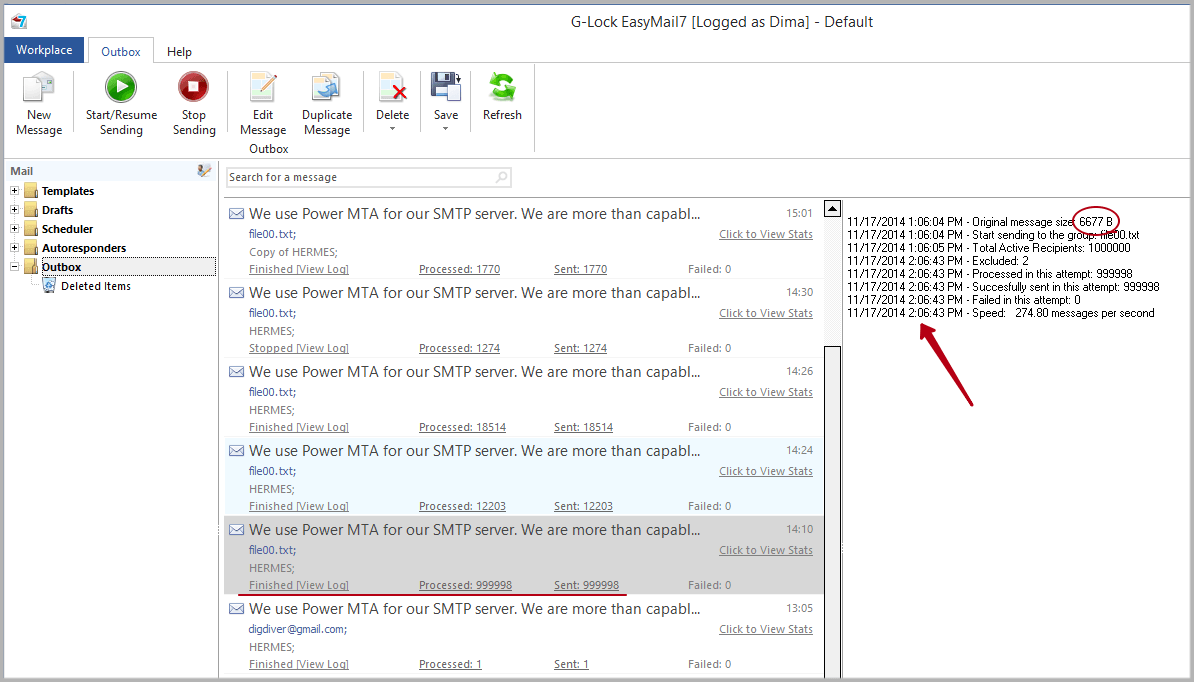
The campaign started with 309 messages/second and after some time went down to 225 messages/second. The average speed was 274 messages/second.
So, G-Lock EasyMail7 gives the emails to the SMTP server rather quickly. The sending speed mostly depends on the message size and the capability of the SMTP server to handle a high volume of email messages.
4. Can I send emails to more than one group at a time?
Yes, you can choose multiple groups in the Group field and send the message to multiple groups at a time.
5. Can it rotate SMTP servers when sending emails?
Yes, you can enter many SMTP servers for one account. G-Lock EasyMail7 will automatically rotate the SMTP servers when you are sending emails from that account.
6. Is it necessary to buy SMTP Server to use G-Lock EasyMail7?
G-Lock EasyMail7 is not supplied with the SMTP server. You need to enter a 3rd party SMTP server in the program. It can be your SMTP server, or the SMTP server of your Internet service provider (ISP), or any other SMTP server. Plus, you can use the SMTP settings of any email service provider such as Amazon SES, SendGrid, Mandrill and others. Here you can read more about how to get a professional SMTP server to send bulk emails
7. When I try to send messages through Amazon SES, I get the "Last Response" field says: "Email address is not verified" error. What does it mean?
As a new user, you are in the Amazon sandbox, and you can send the message only to the email addresses that you have verified. Here is what it is written on the Amazon website:
====
New users are placed in the Amazon SES sandbox, where they can test and evaluate the service in a restricted mode. As a sandbox user, you have full access to the Amazon SES API; however, the following restrictions are in effect:
– Emails can be sent only to and from verified email addresses.
– You can send a maximum of 200 messages per 24-hour period.
– You can send a maximum of one message per second.
====
So, you need to request a production access for your account on Amazon SES to be able to send the message to any email addresses.
====
New users are placed in the Amazon SES sandbox, where they can test and evaluate the service in a restricted mode. As a sandbox user, you have full access to the Amazon SES API; however, the following restrictions are in effect:
– Emails can be sent only to and from verified email addresses.
– You can send a maximum of 200 messages per 24-hour period.
– You can send a maximum of one message per second.
====
So, you need to request a production access for your account on Amazon SES to be able to send the message to any email addresses.
8. When I try to send emails with photos, I get the error that one or more pictures could not be found. How to fix it?
Make sure that there are the absolute paths to the images in your email. Better if you re-insert the images before sending the email. To do this:
Open your message in the Edit mode and then click on the "Picture” icon.
Browse the folders and select the image you want to insert, for example:
C:\Documents and Settings\Julia\My Documents\My Pictures\pic1.gif
This is the absolute path and it will work well.
If you have a website, we recommend that you upload your images to your website and link them to the message. You can upload the images to a website directly from G-Lock EasyMail7 using the built-in FTP client. Then G-Lock EasyMail7 will automatically replace local paths to the pictures with the paths on your site in the message.
When the images are loaded from the server, it helps decrease the message size and increase the sending speed. Plus, images loaded from a website display correctly within the message in web based email accounts.
Open your message in the Edit mode and then click on the "Picture” icon.
Browse the folders and select the image you want to insert, for example:
C:\Documents and Settings\Julia\My Documents\My Pictures\pic1.gif
This is the absolute path and it will work well.
If you have a website, we recommend that you upload your images to your website and link them to the message. You can upload the images to a website directly from G-Lock EasyMail7 using the built-in FTP client. Then G-Lock EasyMail7 will automatically replace local paths to the pictures with the paths on your site in the message.
When the images are loaded from the server, it helps decrease the message size and increase the sending speed. Plus, images loaded from a website display correctly within the message in web based email accounts.
9. I have used G-Lock EasyMail7 for some time and I noticed that all the emails were going to the Spam folder. What about it?
The deliverability rate to the Inbox depends mostly on your sender reputation and on the list you send emails to and not on the email software you use. If your message triggers spam filters, it may be sent to the spam or junk folder or deleted forever without any notification to you.
Here are the tips you can follow to avoid your emails being marked as spam:
1. The first thing is to confirm that there are no technical problems such as authentication and blacklisting issues which could cause email filtering and Inbox delivery problems. You can use GlockApps to test your authentication records and check your sending IP address against blacklists.
If you see that your IP is blacklisted, go to the blacklist’s website and search for the removal instructions. To avoid authentication issues, make sure that your sender authentication records such as SPF, Reverse DNS, and DKIM records are properly setup. For more details read this article.
2. Then look at your client’s data. How did you collect it? How do you maintain it? What are you doing that allows false addresses on your list? Once you have a feel for your data processes, move on to how to fix those processes. Think about what you can do to collect better, cleaner data in the future. You have to make sure that you send emails to a confirmed list of opt-in subscribers who tell the ISP that this is wanted mail.
3. Make sure that bad addresses are expunged and good addresses are kept by processing bounce and unsubscribe emails after each mailing. Use the EasyMail7’s Bounce Handler to exclude hard bounce and complaining addresses from your list and unsubscribe recipients who requested to be removed from your mailings.
4. Send the emails using Amazon SES API or SMTP settings if you don't have your SMTP server or can't use your ISP mail server due to email sending restrictions. Amazon SES is a cheap email sending service. Amazon SES charges only $1 per 10 000 messages. With Amazon SES you can be sure that your emails will be delivered to the Inbox because they watch about their email sender reputation and their servers have all authentication records properly setup.
Here are the tips you can follow to avoid your emails being marked as spam:
1. The first thing is to confirm that there are no technical problems such as authentication and blacklisting issues which could cause email filtering and Inbox delivery problems. You can use GlockApps to test your authentication records and check your sending IP address against blacklists.
If you see that your IP is blacklisted, go to the blacklist’s website and search for the removal instructions. To avoid authentication issues, make sure that your sender authentication records such as SPF, Reverse DNS, and DKIM records are properly setup. For more details read this article.
2. Then look at your client’s data. How did you collect it? How do you maintain it? What are you doing that allows false addresses on your list? Once you have a feel for your data processes, move on to how to fix those processes. Think about what you can do to collect better, cleaner data in the future. You have to make sure that you send emails to a confirmed list of opt-in subscribers who tell the ISP that this is wanted mail.
3. Make sure that bad addresses are expunged and good addresses are kept by processing bounce and unsubscribe emails after each mailing. Use the EasyMail7’s Bounce Handler to exclude hard bounce and complaining addresses from your list and unsubscribe recipients who requested to be removed from your mailings.
4. Send the emails using Amazon SES API or SMTP settings if you don't have your SMTP server or can't use your ISP mail server due to email sending restrictions. Amazon SES is a cheap email sending service. Amazon SES charges only $1 per 10 000 messages. With Amazon SES you can be sure that your emails will be delivered to the Inbox because they watch about their email sender reputation and their servers have all authentication records properly setup.
10. Can I load a HTML email into G-Lock EasyMail7?
Yes, you can create your layout in any standalone HTML editor like Adobe DreamWeaver, FrontPage, or Microsoft Expression Web and load it in G-Lock EasyMail7. Plus, G-Lock EasyMail7 includes a rich store of professionally designed HTML email templates that you install and use for creating email newsletter and a fully-featured context-sensitive message editor so that you can create an HTML email directly in the program.
11. Can I send a message on a language other than English?
Yes, you can send a message on any language and even a multi-lingual message.
12. Where can I set the time interval between sent messages? My provider limits the number of emails one can send per hour.
You can set email throttling in the settings of your Email Server Account. Click on the Workplace menu at the top left corner of G-Lock EasyMail7 window, click on “Email Server Accounts”, select the account and click “Edit”. Here you can set the number of messages per hour, per day and the number of messages sent simultaneously (simultaneous SMTP connections).
Note that the monthly limit of email messages is set by Admin in the Workplace options.
Note that the monthly limit of email messages is set by Admin in the Workplace options.
13. Can G-Lock EasyMail7 automatically attach different files for different recipients?
Yes, G-Lock EasyMail7 can attach different files for different recipients. Please, read this tutorial for more information.
14. Does G-Lock EasyMail7 provide any kind of tracking reports (sent, bounced, unsubscribed, opened, deleted etc.)?
G-Lock EasyMail7 only shows you the number of processed, sent and not sent emails. To get the reports about who opened the email, who clicked links in your message, who unsubscribed and which email clients your recipients used to open your message, you can use our G-Lock Analytics email tracking service. G-Lock EasyMail7 is integrated with G-Lock Analytics. You can read this tutorial to learn how to use G-Lock EasyMail7 with G-Lock Analytics.
Also, G-Lock EasyMail is integrated with Google Analytics and Piwik Analytics so that you can get detailed reports on your website’s visitors, conversions and sales (visits, page views, etc.).
Also, G-Lock EasyMail is integrated with Google Analytics and Piwik Analytics so that you can get detailed reports on your website’s visitors, conversions and sales (visits, page views, etc.).
15. How does G-Lock EasyMail7 handle bounce emails?
G-Lock EasyMail7 has the built-in Bounce Handler. The program can determine hard bounce, soft bounce, mail block and abuse/fraud feedback reports bounce emails. The Bounce Handler can automatically unsubscribe or delete bounce emails from internal groups, update external databases, and delete bounce emails from external databases.
Plus, it can delete transient bounce, challenge-response and auto-reply messages from the server.
Plus, it can delete transient bounce, challenge-response and auto-reply messages from the server.
16. Does it provide the unsubscribe link?
Yes, G-Lock EasyMail7 provides you a ready to use unsubscribe link that you can merge into the message. You can customize the unsubscribe link as you like and have different unsubscribe links for the various groups. Plus, you can set an online unsubscribe process. You can read more information about it here.